Sold Out! Microsoft Virtualization Camps (So Get it Online!)

If you’ve had the chance to attend one of the Virtualization IT Camps I presented in Silicon Valley, San Diego or San Francisco, I hope it was a day well spent.  If you are scheduled to attend the event in Los Angeles on December 5th, I’m looking forward to a packed house, as registration is full and has been closed.

Now, if you are bummed to be missing the event, don’t despair – On December 11th, Matt Hester and Tommy Patterson will be doing an ONLINE version of the event from 9am to 12pm.  They will be covering the same content and showing demos of the hands-on components.

Yeah, I know, it’s not quite the same as in person, but the condensed format will be awesome for those of you who might not be able to commit to a whole day event!

Go to http://aka.ms/virtitcamponline to register!

Windows Server 2012 R2 Brings Improvements to DNS and DHCP Management

DNS and DHCP – they are like two sides to same coin.  At the core, DNS maps human friendly names to IP addresses so we can find resources on the Internet easily, the other hands out IP addresses and other configuration information to computers so they can be accessible on the network.
Both have been around since what seems like the beginning of time, but both have some new improvements with Windows Server 2012 R2.

First, there have been some improvements for DNSSEC support. In Server 2012, the Key Master role only existed for AD-integrated zone, but now that has been extended to support file-backed multi-master zones as well.

Also, the key management service (key generation, storage, retirement) has been isolated to only the key master of a zone.  All other primary DNS servers for zone can continue signing a zone by accessing the keys managed by the master.

Next, let’s bring on the PowerShell improvements.  While DNS on Windows Server 2012 already has a substantial list of statistics available using the Get-DnsServerStatistics, new Zone related statistics have been added for zone query stats, zone transfer stats and zone update stats.

There are also some brand new cmdlets for controlling DNSSEC, to support some of the improvements, like managing Trust Anchors. You can find the complete list of the cmdlets on TechNet, at http://technet.microsoft.com/en-us/library/dn305898.aspx

For the DHCP Server, new PowerShell cmdlets have been added for managing superscopes and multicast scopes, as well as improvements in some of the existing commands for changing failover relationships and interacting with DNS. There are over a dozen new additions, but some of the cmdlets include:

  • Add-DhcpServerv4MulticastScope
  • Add-DhcpServerSecurityGroup
  • Get-DhcpServerv4MulticastScopeStatistics
  • Get-DhcpServerv4SuperscopeStatistics

But it’s not all about PowerShell improvements. There are two DHCP improvements that enhance client DNS registrations. 

The first one extends DHCP polices to configure conditions based on the FQDN of the clients. Or clients can be registered using a different DNS suffix than the one configured on the client.
The second enhancement enables you to configure the DHCP server to register only A records for clients with the DNS server.  This can avoid failed attempts to register PTR records when a reverse lookup zone isn’t configured. PTR record registration can be disabled for all clients of a DHCP server, or by specific subnet or attribute.

Overall these new features can give you better granular control of devices on the network, including workgroup and guest devices. 

Looking for more information about what’s new with Windows Server 2012 R2?  Check out the full list of blog posts in this series, Why Windows Server 2012 R2?.  Also, don’t forget to take a moment to download the Server 2012 R2 bits so you can try it all out for yourself.

Close, But Not Too Close! Azure Affinity Groups and Availability Sets

Microsoft has several regional datacenters for hosting Azure IaaS. There are two on the west coast, two on the east coast and two each in Europe and Asia. When you create a VM you are required to select a region, at minimum, where your VM will be located.  If you just go with a regional selection, you leave it up to the Azure fabric to control where your machine is placed.

For more granular control, you have two other components you need to take advantage of – Affinity Groups and Availability Sets.

By creating an affinity group, you are giving the Azure fabric some additional logic to keep your VMs physically closer together within the datacenter. This might be important if you are hosting an application or service that has multiple server components and you want them to closer together to reduce any potential latency across the internal network.

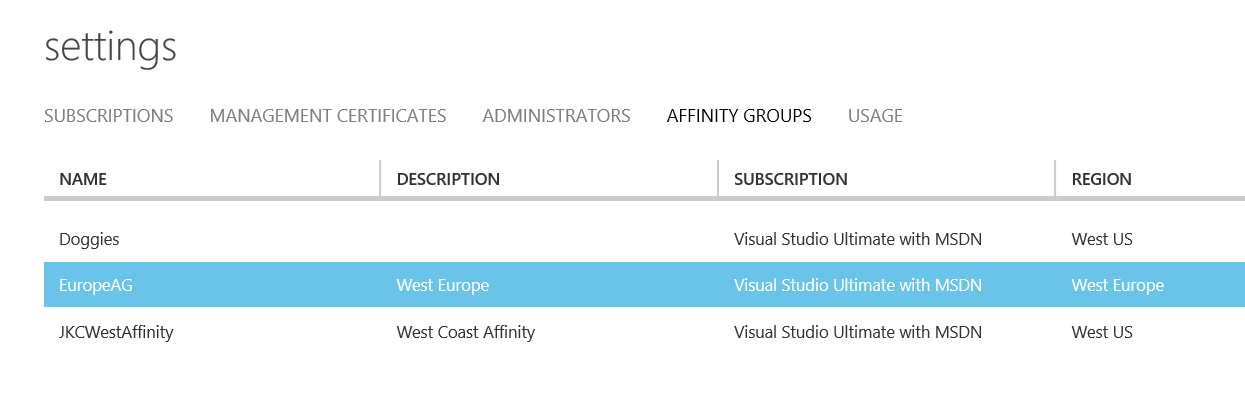
To create an affinity group, you provide a name and create a network that is associated with it.  Then all the VMs added to that affinity group also will be given addressing from the associated virtual network. Affinity groups are created in your Azure settings area.

Having your servers close together in the physical fabric is good, but being TOO close could be bad.  For high availability, you’ll also want to make sure that your servers aren’t all on the same rack or within the same fault domain in the datacenter.  If a whole rack goes down due to a hardware issue, you wouldn’t want an entire cloud service to go with it.

That’s where “Availability Sets” come in.  An “availability set” allows you to define a group of servers that perform the same role and Windows Azure separates them across fault domains and ensures that at least one of them is always available. 

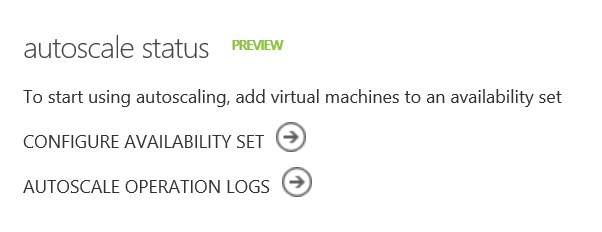
You can set up availability sets in two places: within the autoscale properties for a cloud services (as they are required for autoscale to function), or from the configuration settings of an individual server.

Used with Affinity Groups, you can then get all your servers close together for performance, but separate enough to ensure that your environment can survive fabric maintenance windows or fault events. 

Close, but not too close. Perfect!

Help Shape the Future Microsoft Virtualization, Cloud, and Datacenter Management Products

Got some great ideas about what Microsoft should do with virtualization, the cloud and the datacenter?  Do you actively virtualize systems or want to get more in-depth with the future of virtualization?

Microsoft Windows Server and Systems Center Customer Research team is looking for ITPros to participate on an IT Pro panel.

As a member of the panel, you will have the opportunity to provide vision and feedback to the Cloud and Data Center Management Product team through surveys, focus groups, usability sessions, early design concept reviews, and customer interviews.

The research team is looking for very specific expertise profiles. Use of Microsoft products IS NOT required. To help identify if you qualify, start by completing a short survey.

Please note, this is only for customers located in the US but there is work toward extending to an international audience soon. Once again, you do not have to use Microsoft products to participate.
Interested? Want to learn more? Click to access the survey.

Northern California Powershell Users Group in SF!

Tonight, I had the honor of hosting the Northern California Powershell Users Group in San Francisco.  The topic was using Azure with Powershell.

For those of you who were there, a lot of conversation revolved around provisioning and managing Azure and I wanted to mention that Microsoft (via Technet Events) just finished up a round of IT Camps for Azure IaaS.

At those events, attendees build out a dev/test environment in Azure and while most of the lab guide detailed everything out with using the GUI, there was a bonus challenge at the end that included doing everything with Powershell.

If you are looking to start using Azure with Powershell and want a good place to start experimenting, I suggest getting a free Azure Trial and then downloading the lab manual to give it a shot yourself.  You can find a copy of the lab manual at http://aka.ms/SlidesPlus under the “Azure Camp – Fall 2013” folder.

You’ll find the “Challenge Exercise” and instructions on where to find the necessary Powershell, towards the end of the manual.

Enjoy!

Build a Hyper-V Lab for a Chance to Win a Surface Pro!

This is for US residents only, but here’s a chance to get in on the “IT Pro Cloud OS Challenge” and will some nice prizes while learning about Hyper-V Server. The content runs through the month of November and you can find all the details below!
——————————————————————————–

Build your very own Hyper-V Server 2012 R2 for FREE and Enter for a chance to win* one of the following fantastic prizes:

  • Three Grand Prizes: One of three Microsoft Surface Pro 64GB devices with Type Cover keyboard cover ($828.99 USD Retail Value)
     
  • Twenty-Five First Prizes: One of twenty-five Microsoft Certification Exam Vouchers ($150.00 USD Retail Value)

You could win a Surface Pro or Certification Exam Voucher!

You could win a Microsoft Surface Pro or Certification Exam Voucher!

But Wait! There’s More!In addition to a chance to win one of the prizes above, EVERY ENTRANT will receive our Hyper-V Server 2012 R2 enterprise-grade bare-metal hypervisor software completely free.  This is a fully functional virtualization hypervisor that supports scalability up to 320 logical processors, 4TB physical RAM, live migration and highly-available clustering. Hyper-V serves as the virtualization foundation for Private Clouds leveraging Windows Server 2012 R2 and System Center 2012 R2.

You can enter the IT Pro“Cloud OS Challenge” Sweepstakes by completing all of the THREE EASY TASKS below to download and build your Private Cloud foundation with Hyper-V Server 2012 R2.  Be sure to complete the last task to submit your proof-of-completion for entry into this sweepstakes.

  • Entries must be received between November 1, 2013 and November 30, 2013 to be eligible. One entry per individual.
  • This Sweepstakes is open to all IT Professionals Age 18 and over that are legal residents of the United States.
  • Estimated Completion Time: 20 minutes

TASK 1 – Download Hyper-V Server 2012 R2

Download the Hyper-V Server 2012 R2 installation bits using the link below.
Download Hyper-V Server 2012 R2 for FREE!

TASK 2 – Install Hyper-V Server 2012 R2

Install Hyper-V Server 2012 R2 in your lab environment using the installation steps linked below.

TASK 3 – Submit Proof-of-Completion

Complete the steps in this task to submit your proof-of-completion entry into the IT Pro “Cloud OS Challenge” Sweepstakes for a chance to win one of the exciting prizes listed above.

  1. At the console command prompt of your new Hyper-V Server 2012 R2 server, run the following command to collect your server’s configuration:

    systeminfo >CloudOSConfig.txt
     

  2. Copy the CloudOSConfig.txt file created in Step 1 above to a USB storage device or other location that is accessible for sending an email.
     
  3. Send a new email message to CloudChallenge@microsoft.com
     
  4. IMPORTANT: In the body of the email, include this exact text:
    “I’ve completed the Microsoft IT Pro Cloud OS Challenge for Hyper-V Server 2012 R2.”
     
  5. IMORTANT: Attach the file created in Step 1 into the body of the new email message created above.
     
  6. Click the Send button in your email client to submit the email message as your proof-of-completion and sweepstakes entry.

Upon submitting your entry, you will receive a confirmation email within 24-hours.

COMPLETED! But … Want more?
Now that you’ve installed Hyper-V Server 2012 R2, continue your learning and evaluation with these additional resources.

  • Want to learn more about Hyper-V Server 2012 R2 and Microsoft Private Cloud?
    • COMPLETE this Step-by-Step Guide for Hyper-V Server 2012 R2.
    • MANAGE Hyper-V Server 2012 R2 with local console tools.
    • CLUSTER Hyper-V Server 2012 R2 for highly available virtual machines.
    • MIGRATE Virtual Machine workloads to Hyper-V Server 2012 R2.
    • BUILD Your Private Cloud with System Center 2012 R2.

*NO PURCHASE NECESSARY. Open only to IT Professionals who are legal residents of the 50 U.S. states or D.C., 18+. Sweepstakes ends November 30, 2013.  For Official Rules, see http://aka.ms/CloudChallenge201311Rules.

Ins and Outs: Azure Input Endpoints

Go ahead, say that three times fast! Yes, it’s a tongue twister and when it comes to virtual machines and cloud services, it can be a bit of mind-bender too.  (If you haven’t had a chance to read my previous posts about Cloud Services for IaaS and Virtual Networks and DHCP, you might want to check those out for background.)

In a nutshell, input endpoints are openings in your cloud service firewall.
image
Because a cloud service has only one external IP address, port forwarding is used to direct various access requirements to the right location.

In this screen shot, you can see that my single cloud service (with a public IP of 137.135.42.10) has four endpoints open, two for the server named “sabina” and two for “franka”.
inputendpoints
In this case, the port numbers were randomly assigned and as this is a Windows Server the default ports are for RDP and PowerShell.

By looking at the specific endpoints assigned to “Franka”, we can se that Remote Desktop is using the public port 58155 and PowerShell is using 58392.
image
Because this Windows Server was spun up using the image from the Azure gallery, I can trust that the Windows Firewall on the OS has the appropriate rules open to allow traffic that is passed through the Azure endpoints to be received by the server.

If I was to add on a different service, like HTTP or FTP, I would need add the endpoint to Azure AND add the appropriate rules to server OS, so it will listen on the proper port. When creating a new endpoint, Azure will suggest the default port numbers, but they can be customized easily.

An important point to remember is that opening the endpoint in Azure won’t guarantee your server will be accessible via that protocol.  You must open the corresponding listener port from within your operating system. This is critical if you are bring your own server image to Azure, as it’s important to make sure that RDP (or your management protocol of choice) is also open on the OS otherwise you will be unable to manage your server once it’s in the cloud.

If you require more fine tuning of your endpoint access with customized ACL lists, that’s not available via the Azure GUI.  However, you can use PowerShell for that level of detail – read more here.

Depending on the work that your servers are doing within your cloud service, you can also configure basic round-robin load balances on those endpoints.  Learn more about that here.

Haven’t tried out Azure yet? Sign up for a free trial today.

New System Center Training on Microsoft Virtual Academy

If you don’t regularly check in with the Microsoft Virtual Academy, you are missing out on a great way to learn at your own pace.  If System Center is something you are getting into, or even if you’ve been using it for years, you might want to look at some of the new recordings available.  Here are a few that are fresh this week!

Infrastructure Provisioning (with Kenon Owens)
http://www.microsoftvirtualacademy.com/training-courses/infrastructure-provisioning-and-management-with-system-center-2012-r2
Many organizations have a very diverse underlying infrastructure. From different pieces of hardware, to different hypervisors. Regardless of this, they need to be able to manage everything in a consistent way. With System Center 2012 R2 Virtual Machine Manager, they are able to have a consistent management experience across these multiple hypervisors. This course will address deployment of compute, storage, and networking resources, and how to construct all of the different resources that we have and construct them together into a private cloud. Finally the course will delve into day-to-day operations to keep the infrastructure up and running, and deploying services to the end users as well as the architecture behind it all.

Infrastructure Monitoring (with Won Huh)
http://www.microsoftvirtualacademy.com/training-courses/infrastructure-monitoring-with-system-center-2012-r2
This course covers new monitoring capabilities and opportunities offered in Systems Center 2012 R2. Moving away from physical boxes being monitored only by individual teams, this course goes over all monitoring opportunities, including Private Cloud Monitoring, Public Cloud Monitoring, Hybrid Cloud Monitoring, OS and Workload Monitoring. Also included in this course is information about proactive monitoring integrated through System Center Advisor, and an overview of the new customized widget dashboard.

The Blog Series: Why Windows Server 2012 R2?

Well, why not?  Join the Microsoft IT Pro Evangelists as they embark on another blog series hosted by Dan Stolts. 

Check out Dan’s official landing page to learn about Active Directory Certificate Services, iSCSI Target Server, Scale-out File Server, Tiered Storage Spaces and more!

The series runs from now until Thanksgiving so check in with Dan often for the newest post.

Meanwhile if you need the bits to Server or Hyper-V Server… get them here:

Getting Comfortable with Azure Virtual Networks and DHCP

One of the great features of Azure IaaS is being able to extend your existing internal network to the cloud over a site-to-site VPN. You can bring your own IP addresses, but remember, the devil is always in the details. Or rather, knowledge is power!

Azure IaaS supports the standard private IP network ranges – 10.x, 172.x and 192.x – so you can easily give your Azure network a range that is comparable to the network range you are using in your data center.

However, Azure expects all guests to receive their IP address via DHCP. This took me a bit to grow comfortable with, as I spent years in smaller datacenters were each server was lovingly assigned an IP address that had been selected from a master spreadsheet. (Old school, I know!)  My favorite servers were given “choice” addresses with easy to remember numbers.

But networking is changing and we must change with it, so I’m becoming more comfortable with having less control over the particular address assigned to a given machine. This is key thinking when it comes to network virtualization.  By abstracting away some of the nuts and bolts of the network, the ability to be more flexible is introduced – which is good.  Someone I was talking to at a conference recently compared it to the adoption of IPv6.  IPv6 addresses are so long you would never statically assign them to a machine, that is all automated.

But, can I give my Azure VM a static address? Well, lets just say nothing is stopping you. You can go into your VM IP settings and do whatever you want.  But the risk of introducing a future IP address conflict is high and you will eventually lose the ability to connect to your VM.  Azure expects to get periodic DHCP renewal requests and when those stop the Azure fabric will remove that IP as active and stop forwarding traffic to it. There is no way to connect to the “console” of your Azure VM, so lost remote access to a machine due to an addressing issue will make for a very unhappy day.

Let’s say my internal network for my servers is 192.168.10.x/24.  I have two basic options for my Azure network:

  1. Configure 192.168.10.x/24 in Azure, with a subnet for 192.168.10.128/25. I would need to make sure that everything in my physical datacenter was assigned IPs in the beginning half of the range, leaving 192.168.10.128 – 192.168.10.255 under Azure control. Azure also grabs a few other address out of the range for internal use, so I’d likely want to make sure I wasn’t using those in my physical network either. I think this option is messy and prone to errors. Also, I’m sure someone who does networking configuration all day will tell me it makes them cringe for more than one reason.
  2. Create an different address range for Azure and make sure my internal switching gear is set up to route to it, like 192.168.20.x/24.  This would allow me to use a numbering scheme that makes sense within my organization, but also makes it easy to quickly identify resources that are internal vs. Azure based.

Keep in mind that any server in Azure will be assigned a persistent private IP address from your range with an infinite lease time, so if you are worried about domain controllers or other servers where the current “best practice” is to have a static assigned address, you can relax.  The only time a machine would loose it’s IP lease is when it’s in the “Stopped – Deallocated” state.

Finally, keeping with my “plan twice, create once” mantra, once your add a machine to an Azure network, you can only make limited changes – like adding new subnets or adjusting subnets that are not yet used.

For more information visit the Windows Azure Virtual Networks Overview.