Inside MDOP: MED-V and App-V

Inside the Microsoft Desktop Optimization Pack, you’ll find MED-V and App-V. Both provide ways to deliver applications to your desktop, but they solve different problems.

MED-V is good for resolving incompatibilities between an application and Windows 7. By creating and distributing a full instance of Windows XP from which the application runs, users can access applications that would not run on Windows 7 otherwise. It’s also applicable for websites that must run in a browser like Internet Explorer 6. For example, an IE 6 instance can be launched from within the MED-V managed OS and be controlled with policies to limit the sites that are available from the less secure browser.

In general, a MED-V hosted application is isolated from the primary operating system, though the clipboard can be shared to allow for basic copy/paste functionality between applications and printer redirection can ensure users can print from the MED-V application. If your application is very task specific and does not require direct interactions with other applications on the primary operating system, MED-V can allow you to upgrade to Windows 7 before solving the application compatibility issue.

Application Virtualization (App-V) creates and delivers a single application in a package, instead of a full instance of an operating system like MED-V. The application package is cached on the local machine, but in not installed in the traditional sense. By not installing application files directly and keeping them isolated in their packages, App-V can eliminate conflicts between two applications that might otherwise cause failures when installed on the same machine. An example would be where Office 97 and later versions of Office share DLLs with similar names, but have functionality that doesn’t work with both products.

App-V also eases application upgrades and maintenance by allowing IT to update single packages that are then streamed to users on demand, instead of having to managing multiple local installations of software. Because applications deployed with App-V execute locally on the desktop they utilize the CPU and memory resources of the local machine instead of those on the server. Inter-application communication with other App-V applications and applications installed locally are preserved, allowing for cut and paste, OLE, and all other standard operations. However applications that install their own device driver, like a print driver, may not be suitable for complete virtualization.

In a nutshell, App-V can help you develop a more robust and controlled application management lifecycle, while allowing support for some legacy applications that don’t play well with new versions. MED-V builds a “temporary” bridge between applications that only work on older operating systems, providing some wiggle room so you can potentially upgrade your desktops without having to wait until all your applications are supported.

Depending on the needs of your organization, MED-V or App-V might be just what you need to solve a lingering application compatibility issue.
To Map or Not To Map – There is a Checkbox!

At my office we’ve begun making several changes to how we manage the desktops and applications for our users and we are taking advantage of Group Policy preferences. We aren’t ready to deploy Windows 7 quite yet, but Windows XP machines can take advantage of Group Policy preferences with the addition of the client side extensions.


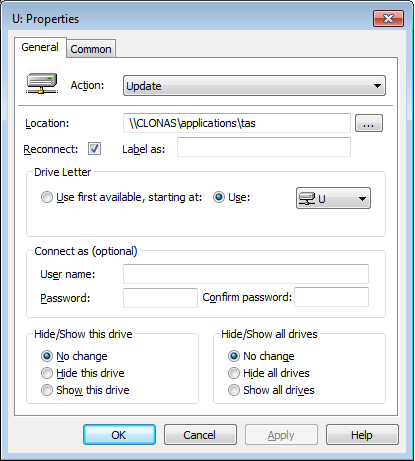
The preference we opted to start with was mapping drive letters, which was done with several log on scripts in the past. Everything seemed to be working just fine until a user who accessed the system remotely through our Terminal Services RemoteApp reported that one of the drive letters was missing. Turns out that particular drive mapping was misbehaving for several people on various computers.

I compared the troublesome mapping to one that was working correctly and found the only difference was a single check box for “Reconnect”.

The “update” action setting is supposed to create the mapping if it doesn’t exist, however that doesn’t seem to be working quite a expected. The reconnect check box saves the mapping in the user’s settings and attempts to restore it at each subsequent log on. I didn’t experiment further, but perhaps if I used the “replace” action setting for the mapping I wouldn’t have the issue at all, as that deletes and recreates the mapping every time.

Either way, the reconnect check box saved the day.

24G2EENJ95VJ

Red Arrows on connected Terminal Services Users

Now that I’ve been actively working to move people from our aging Citrix setup to Server 2008 Terminal Services, I’ve been spending some more time in Terminal Services Manager. While there, I’ve noticed that outside of my adminstrator level account, all the connected users have an icon with a red down arrow next to them.

My first thought was that it was a licensing issue, so I checked the terminal services licensing server. We license by device and everything seemed to be in order. My next stop was a search on the internet, where I turned up this lone post on eggheadcafe.com. The reply about it being a “known issue” is not terribly outdated so I’m just going to let the red arrows be for a while and move on to other things.

Microsoft Resources on the Web

There’s more to Microsoft than www.microsoft.com. Most IT Professionals know about Microsoft TechNet, but there are many other great resources for professionals, consumers, students and businesses that provide access to great content about Microsoft products. Here are a few you might want to visit:

Talking About Windows – check out videos by IT Professionals and Microsoft Engineers as they talk about using and developing Windows. Submit your comments and feedback, or look for Windows related events in your location.

Microsoft Springboard Series – part of Microsoft TechNet, the Springboard Series focuses on the client OS. Find resources, blogs and forums for Windows 7, Windows Vista and Windows XP or connect with industry experts.

Microsoft Answers – real people from Microsoft and the tech community cover this forum for products like Microsoft Office, Security Essentials, Windows Live and the various client operating systems.

Microsoft Learning – the starting point for certifications, training materials and community resources for learning about Microsoft products and prepping for exams.

Because It’s Everybody’s Business – a portal site for businesses highlighting popular IT projects and the related software. Resources include production information, trial downloads and resources including case studies, news and blogs.

DreamSpark – a site dedicated to putting professional tools in the hands of students at low or no cost. Schools and students can register and start downloading Windows Server, SQL 2005 and a host of other development applications.

Working with Windows products, like any other software product that changes and evolves, can lead to frustration and confusion when trying to determine the right product for a project or business need. Knowing where to go to find answers and other valuable resources can be a key to success. It’s not always about what you know, it’s knowing where to look for what you need.

Control Outlook 2007 Junk Mail Settings via GPO

If you do a web search for setting up a Group Policy for controlling Outlook 2007 junk mail settings (specifically adding a global Safe Senders or Safe Recipients list) you’ll find a ton of links, spanning several years and pointing to posts, KB articles and other blogs. This is how I got it to work for me. And yes, you still need on extra registry key that’s not in the template settings.

Goal: Append a global list of “Safe Senders” to each users existing list in Outlook 2007.

Scenario: We have an Windows 2003 domain, Exchange 2003 and Outlook 2007 deployed on Windows XP.

  1. Create a file called “safesenders.txt” in a shared location that is accessible to all users.
  2. Access Group Policy Management Editor from a Vista or Windows 7 machine so Group Policy Preferences can be used.
  3. Install the administration templates for Office 2007. (These were already in our system from when a co-worker deployed Office 2007.)
  4. Create or edit a policy to control Microsoft Office or Outlook.
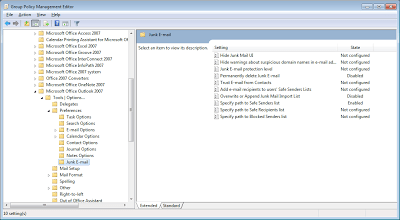
  5. Go to “User Configuration – Policies – Administrative Templates – Classic Administrative Templates – Microsoft Office Outlook 2007 – Tools Options… – Preferences – Junk E-mail”
  6. Disable “Overwrite or Append Junk Mail Import List”. If you enable this policy, the users existing personal list will be overwritten with the common list. (You’d think there would be something that let’s you select overwrite or append, but instead enable = overwrite, disable = append.)
  7. Enable “Specify path to Safe Senders list” and include the path to your common file.

  8. In the same GPO, go to “User Configuration – Preferences – Windows Settings – Registry”. (You don’t have to use the same GPO, but I did to keep things all together. Also, GPO processing happens faster if you have less of them overall.)
  9. Create a key under “HKEY_CURRENT_USER” for “Software\Policies\Microsoft\Office\12.0\Outlook\Options\Mail” with the value of “JunkMailImportLists”, dword=1

Once the policy is pushed out to your clients, you should see your additions to the safe senders in Outlook.

Two days at Microsoft: What makes an Optimized Desktop?

This week I’ve had the honor of spending two days at the Microsoft campus in Redmond, learning about the components of MDOP (Microsoft Desktop Optimization Pack) and concept of the “Optimized Desktop”.

The discussions topics for the training revolved around the primary problem with desktop management: The components of a PC are bound together, making hardware and software difficult and expensive to replace and manage. Software and OS upgrades can slow drastically when the life-cycle of aging hardware components dictate what’s possible in the organization. Also, applications need consistent management to allow for ease of maintenance and the eventual retirement of dated and insecure tools.

Also, with new opportunities and challenges with cloud services, highly mobile workers and cutting edge consumer products, IT Professionals have a lot of needs to juggle to keep everyone working effectively. Users want easy access to their data from different devices, regardless of where it’s located – local to their office PC or laptop, on the corporate network or in the cloud.

The next generation optimized Windows desktop uses several applications found in MDOP to separate user data & settings, applications and the operating system from the hardware so they can be managed independently. This can make the adoption of newer, more secure operating systems easier to attain.

Ultimately, the Optimized Desktop helps bring some essential features to the finger tips of both the IT Pros and the users they support: end-to-end management, better application experiences, improved security and data protection, anywhere access for users, and reliable business continuity.

The components of MDOP include:

  • Enterprise Desktop Virtualization (MED-V)
  • Application Virtualization (App-V)
  • Diagnostics and Recovery Toolset (DaRT)
  • System Center Desktop Error Monitoring (DEM)
  • Asset Inventory Service (AIS)
  • Advanced Group Policy Management (AGPM)

I won’t drill down into each of those components in this particular post, but trust you’ll see more about these tools in the near future. Brad McCabe, Senior Product Manager for Windows Client, put together an full agenda for those of us in attendance and I was excited to be able to participate.

Finally, if you aren’t sure where you can go and what you can do with Desktop Virtualization (VDI), don’t miss out on the Desktop Virtualization Hour, Thursday 3/18 at 9am.

Reapplying a software assignment GPO to a single computer

At my office, we’ve found that assigning applications for installation using group policies has worked well for our relatively small number of desktops. While the out-of-the-box Active Directory GPO features lack comprehensive reporting tools and other refinements,they get the job done and save us about 100 trips to individual computers.

In general, software assignment is a pretty binary event. The software installs or it doesn’t. Once the software is installed successfully, the policy will not apply again unless it’s changed or set to reapply to all the machines affected by the policy.

But what if you need to reapply a policy to just one machine? For example, we had a machine with an incorrect group membership that result in the GPOs attempting to apply two different versions of the same software. Neither version worked correctly in the end, but the policies were considered “applied” and would not apply again, even after the damaged software was removed.

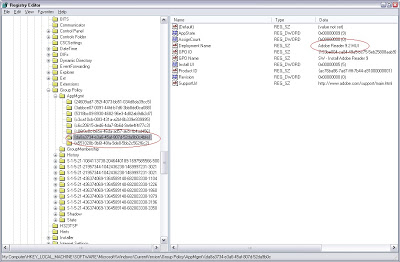
There is a place in the registry where a machine tracks all the software policies that have been applied – HKLM\Software\Microsoft\Windows\Current Version\Group Policy\AppMgmt.

You need to delete information from two different locations. First, the values for the software package under the AppMgmt key. The values are all in a GUID format, but you can find out the GUID of your application by looking for the Product code in the GPO intself. Find that in “Computer Configuration – Policies – Software Settings – Assigned Applications – (product name) – Deployment Information.”


After you delete the proper entry under AppMgmt, find the corresponding application within the AppMgmt tree. This one is easier to find because the application name is listed as one of the values. (The product ID value will also match the GUID you deleted in the first step.) Delete the whole key.


Once the keys are removed, run gupdate \force and then reboot. The software application GPO will apply again.

Microsoft Expands “Elevate America” Program to California

Looking for more technology training and certification opportunities? An article on SFGate.com yesterday details the expansion of Microsoft’s Elevate America program to California.

This program offer vouchers for online training and certifications for a variety of Microsoft business software. While predominately for business products like Microsoft Office, some vouchers will be available for IT Professional training.

Vouchers will be available on a first-come, first-serve basis through CareerOneStop and you can search for locations in your area. Other states that are currently distributing vouchers as part of the program are Colorado, Iowa, Georgia and Michigan.

You can also follow the Elevate America (@elevateamerica) program on Twitter.

Put your money where your cloud is.

Cloud. Cloud. Cloud. Everything is about the “cloud” these days. Though for as long as there has been the Internet, there’s always been a cloud – it’s just a matter of how it was being used. And when it comes to the Internet, it’s a lot about what one can get for free and what is worth paying for.

First off, I’m a heavy user of Google services. Gmail is my starting point for email management and I’ve been pretty happy with the feature set and the service. Plus I love not having to rely on a specific client or specific machine to send mail and can access it from any computer and my phone. I’m not a big fan of Google Docs, but Google Voice is pretty cool too – and all of Google’s services are free, assuming you don’t mind targeted advertising. Plus the BlackBerry application works pretty well.

And let’s face it, there would be no WWW with web hosting services. There are several fine companies that offer free hosting for small sites if you use them for domain registration and don’t need any of the more involved features, like PHP or dedicated servers. I’ve been happy with DotEasy so far. It does what I need for several small sites I have to keep up and running on the cheap.

For file backup and document access, I use SugarSync. This service is free for the first 2 GB of data, but I’m willing to pay for the 30 GB level. Files are accessible via the web portal and there is an option to email documents to yourself that will then be synced to your registered computers automatically. If you want to check it out, use me as a reference and we’ll all get extra space!

Another cool online tool is Remember The Milk, a task management portal. The web service is free, but the tools to sync to mobile devices requires an annual fee. It’s a bit pricey when compared to what I spend on other services, but there is a two week trial period before needing to commit. The “pro” service also gets you priority email support.

Another cloud related application that I use daily is UberTwitter. This BlackBerry application is my connection to my favorite social media portal and is worth every penny of it’s nominal fee. Sure, Facebook has a free application for the Blackberry, but I find I’m happier the less time I spend there.

Finally, I’d miss the ability to download content onto my Kindle wirelessly over the Internet. Amazon’s service allows me to catch up on the newspaper daily and purchase books without the hassle of having to make extra space in my bag.

It’s easy to get lulled into the idea that everything on the Internet should be free, but I’m willing to put my cash behind web services, features and related applications when they meet my needs. What about you?

Error Messages: When they could be more helpful…

The last few weeks I’ve been tripped up by this odd issue with connecting calendars in SharePoint to Outlook 2007. The problem was following me from machine to machine, which made it particularly troublesome. Other people I tested with could properly connect to the calendars, so I knew it wasn’t a show-stopper for our SharePoint (WSS 3.0) roll out, but I knew I’d need to get it solved at some point.

The only two symptoms I had that seemed worth any salt was the fact that the “sharepoint.pst” file wasn’t being created and Outlook would throw an Informational Event in the Application log, that stated “Operation Failed” (Event 27). So which operation was failing?

Turns out we had an odd collection of things going on that contributed:

  1. An Office GPO set a while back during our Office 2007 deployment defaulted newly created PST files to sub-folder in the user’s home folder called “outlook” (Ex. home\outlook)
  2. Several users (including myself) had an unexplained file named “outlook” (no extension) of 265MB in size in their home folders.
  3. Users (like me) who didn’t use PST files or had their PST files in a different location before the policy was applied.

The GPO policy wouldn’t have been an issue, if not for the random “outlook” file that was blocking the creation of the sub-folder for the sharepoint.pst placement. (Bad default PST file creation after the software upgrade from Office 2003? Failed personal mailbox creation if the server/username couldn’t be resolved for some reason?)

The Windows operating system will allow the creation of folders that match filenames as long as the file has a file type extension on it, but if the file doesn’t have an extension it’s not possible to create a folder of the same name. If this problem occurs in Windows Explorer, an error message will pop up.

However when Outlook 2007 was confronted with the inability to create the sub-folder, it failed in a mostly silent fashion – providing only the “operation failed” message, without any additional information that would have been valuable in the moment. A error window or line in that application log error detailing the path to where the sharepoint.pst file was supposed to go would have made the error quick and easy to resolve.