
Two days at Microsoft: What makes an Optimized Desktop?

This week I’ve had the honor of spending two days at the Microsoft campus in Redmond, learning about the components of MDOP (Microsoft Desktop Optimization Pack) and concept of the “Optimized Desktop”.

The discussions topics for the training revolved around the primary problem with desktop management: The components of a PC are bound together, making hardware and software difficult and expensive to replace and manage. Software and OS upgrades can slow drastically when the life-cycle of aging hardware components dictate what’s possible in the organization. Also, applications need consistent management to allow for ease of maintenance and the eventual retirement of dated and insecure tools.

Also, with new opportunities and challenges with cloud services, highly mobile workers and cutting edge consumer products, IT Professionals have a lot of needs to juggle to keep everyone working effectively. Users want easy access to their data from different devices, regardless of where it’s located – local to their office PC or laptop, on the corporate network or in the cloud.

The next generation optimized Windows desktop uses several applications found in MDOP to separate user data & settings, applications and the operating system from the hardware so they can be managed independently. This can make the adoption of newer, more secure operating systems easier to attain.

Ultimately, the Optimized Desktop helps bring some essential features to the finger tips of both the IT Pros and the users they support: end-to-end management, better application experiences, improved security and data protection, anywhere access for users, and reliable business continuity.

The components of MDOP include:

  • Enterprise Desktop Virtualization (MED-V)
  • Application Virtualization (App-V)
  • Diagnostics and Recovery Toolset (DaRT)
  • System Center Desktop Error Monitoring (DEM)
  • Asset Inventory Service (AIS)
  • Advanced Group Policy Management (AGPM)

I won’t drill down into each of those components in this particular post, but trust you’ll see more about these tools in the near future. Brad McCabe, Senior Product Manager for Windows Client, put together an full agenda for those of us in attendance and I was excited to be able to participate.

Finally, if you aren’t sure where you can go and what you can do with Desktop Virtualization (VDI), don’t miss out on the Desktop Virtualization Hour, Thursday 3/18 at 9am.

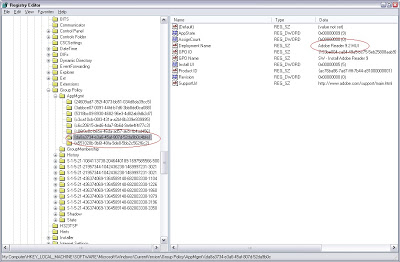
Reapplying a software assignment GPO to a single computer

At my office, we’ve found that assigning applications for installation using group policies has worked well for our relatively small number of desktops. While the out-of-the-box Active Directory GPO features lack comprehensive reporting tools and other refinements,they get the job done and save us about 100 trips to individual computers.

In general, software assignment is a pretty binary event. The software installs or it doesn’t. Once the software is installed successfully, the policy will not apply again unless it’s changed or set to reapply to all the machines affected by the policy.

But what if you need to reapply a policy to just one machine? For example, we had a machine with an incorrect group membership that result in the GPOs attempting to apply two different versions of the same software. Neither version worked correctly in the end, but the policies were considered “applied” and would not apply again, even after the damaged software was removed.

There is a place in the registry where a machine tracks all the software policies that have been applied – HKLM\Software\Microsoft\Windows\Current Version\Group Policy\AppMgmt.

You need to delete information from two different locations. First, the values for the software package under the AppMgmt key. The values are all in a GUID format, but you can find out the GUID of your application by looking for the Product code in the GPO intself. Find that in “Computer Configuration – Policies – Software Settings – Assigned Applications – (product name) – Deployment Information.”


After you delete the proper entry under AppMgmt, find the corresponding application within the AppMgmt tree. This one is easier to find because the application name is listed as one of the values. (The product ID value will also match the GUID you deleted in the first step.) Delete the whole key.


Once the keys are removed, run gupdate \force and then reboot. The software application GPO will apply again.

Microsoft Expands “Elevate America” Program to California

Looking for more technology training and certification opportunities? An article on SFGate.com yesterday details the expansion of Microsoft’s Elevate America program to California.

This program offer vouchers for online training and certifications for a variety of Microsoft business software. While predominately for business products like Microsoft Office, some vouchers will be available for IT Professional training.

Vouchers will be available on a first-come, first-serve basis through CareerOneStop and you can search for locations in your area. Other states that are currently distributing vouchers as part of the program are Colorado, Iowa, Georgia and Michigan.

You can also follow the Elevate America (@elevateamerica) program on Twitter.

Put your money where your cloud is.

Cloud. Cloud. Cloud. Everything is about the “cloud” these days. Though for as long as there has been the Internet, there’s always been a cloud – it’s just a matter of how it was being used. And when it comes to the Internet, it’s a lot about what one can get for free and what is worth paying for.

First off, I’m a heavy user of Google services. Gmail is my starting point for email management and I’ve been pretty happy with the feature set and the service. Plus I love not having to rely on a specific client or specific machine to send mail and can access it from any computer and my phone. I’m not a big fan of Google Docs, but Google Voice is pretty cool too – and all of Google’s services are free, assuming you don’t mind targeted advertising. Plus the BlackBerry application works pretty well.

And let’s face it, there would be no WWW with web hosting services. There are several fine companies that offer free hosting for small sites if you use them for domain registration and don’t need any of the more involved features, like PHP or dedicated servers. I’ve been happy with DotEasy so far. It does what I need for several small sites I have to keep up and running on the cheap.

For file backup and document access, I use SugarSync. This service is free for the first 2 GB of data, but I’m willing to pay for the 30 GB level. Files are accessible via the web portal and there is an option to email documents to yourself that will then be synced to your registered computers automatically. If you want to check it out, use me as a reference and we’ll all get extra space!

Another cool online tool is Remember The Milk, a task management portal. The web service is free, but the tools to sync to mobile devices requires an annual fee. It’s a bit pricey when compared to what I spend on other services, but there is a two week trial period before needing to commit. The “pro” service also gets you priority email support.

Another cloud related application that I use daily is UberTwitter. This BlackBerry application is my connection to my favorite social media portal and is worth every penny of it’s nominal fee. Sure, Facebook has a free application for the Blackberry, but I find I’m happier the less time I spend there.

Finally, I’d miss the ability to download content onto my Kindle wirelessly over the Internet. Amazon’s service allows me to catch up on the newspaper daily and purchase books without the hassle of having to make extra space in my bag.

It’s easy to get lulled into the idea that everything on the Internet should be free, but I’m willing to put my cash behind web services, features and related applications when they meet my needs. What about you?

Error Messages: When they could be more helpful…

The last few weeks I’ve been tripped up by this odd issue with connecting calendars in SharePoint to Outlook 2007. The problem was following me from machine to machine, which made it particularly troublesome. Other people I tested with could properly connect to the calendars, so I knew it wasn’t a show-stopper for our SharePoint (WSS 3.0) roll out, but I knew I’d need to get it solved at some point.

The only two symptoms I had that seemed worth any salt was the fact that the “sharepoint.pst” file wasn’t being created and Outlook would throw an Informational Event in the Application log, that stated “Operation Failed” (Event 27). So which operation was failing?

Turns out we had an odd collection of things going on that contributed:

  1. An Office GPO set a while back during our Office 2007 deployment defaulted newly created PST files to sub-folder in the user’s home folder called “outlook” (Ex. home\outlook)
  2. Several users (including myself) had an unexplained file named “outlook” (no extension) of 265MB in size in their home folders.
  3. Users (like me) who didn’t use PST files or had their PST files in a different location before the policy was applied.

The GPO policy wouldn’t have been an issue, if not for the random “outlook” file that was blocking the creation of the sub-folder for the sharepoint.pst placement. (Bad default PST file creation after the software upgrade from Office 2003? Failed personal mailbox creation if the server/username couldn’t be resolved for some reason?)

The Windows operating system will allow the creation of folders that match filenames as long as the file has a file type extension on it, but if the file doesn’t have an extension it’s not possible to create a folder of the same name. If this problem occurs in Windows Explorer, an error message will pop up.

However when Outlook 2007 was confronted with the inability to create the sub-folder, it failed in a mostly silent fashion – providing only the “operation failed” message, without any additional information that would have been valuable in the moment. A error window or line in that application log error detailing the path to where the sharepoint.pst file was supposed to go would have made the error quick and easy to resolve.

"She’s Geeky" Session Notes

I just checked back at the She’s Geeky website for the conference I attended at the end of January and noticed that a good selection of the session notes have been posted. The Privacy and Identity Online session was great and there were several others that seemed like they would have been fun to participate in. I’ll keep checking back, but really I’m just looking forward to the next event that’s close enough for me to attend!

Connecting to secure Wireless Network Connections on Windows 7

Wireless access at the RSA Conference has been pretty good this week and since it’s a security conference, the official network is password protected with 802.1x PEAP. The wireless network help desk has printed instructions for connecting your XP or Vista laptop, but no instructions for Windows 7. I used a combination of the instructions and screenshots from both OSes to give me the details I needed to get Windows 7 connected.

Interestingly, the Windows Vista instructions implied a much faster process where the user is prompted to trust the server certificate and the PEAP and MSCHAP v2 settings do not need to be manually configured. I’ve never run Vista on a laptop, so I can’t confirm or deny the need to configure those items. In XP and Windows 7, you have to make sure that the root certificate is trusted and other settings are configured before attempting to connect.

Below is an example of the secure network settings provided for the conference center and where to plug in that information in Windows 7. Settings may vary depending on the requirements of other secure networks you encounter.

Setting Information

SSID: secure2010
Network Authentication: WPA2 or WPA (enterprise)
Data Encryption: AES or TKIP
EAP type: PEAP
Validate server certificate: ms1.showfloor.net
Certification Authority: Thawte Premium Server CA
PEAP authentication method: MSCHAP v2
MSCHAP properties: Do not use Windows logon
Enable Fast Reconnect: No

Steps By Step

  1. Open Network and Sharing Center
  2. Set up a connection to a new network (manually create network)


  3. After the network connect is created, go to it’s properties. On the security tab, click the settings for PEAP.

  4. Check “connect to this server” and add the server name to validate the server certificate.
  5. Check the appropriate trusted root CA.
  6. Disable Fast Reconnect.
  7. Click the “configure” button for MSCHAP and unselect the option to use the Windows logon.

When you connect to the network you’ll be prompted for the username and password. Once entered, your connection will authenticate and you’ll be on your way.

Memory Leak cripples OWA

I have to admit the Exchange 2003 Outlook Web Access has me a bit spoiled. It always seems to be there – day in, day out. So when a report of OWA not loading came in, I was surprised. Where to begin?

I really don’t like rebooting Exchange. The usually ever-reliable attempt to restart the IIS service didn’t bring it back to life and nothing suspicious was in the event logs, so our resident webmaster took a look in the IIS logs and found several “connections refused” errors in the %WINDIR%\logfiles\httperr\httperr1.log.

This gave me something to start with and after some research I found that those type of errors in the HTTPERR log often point to a non-paged pooled memory leak. As per the Troubleshots MSDN blog:

While there are many possible causes for the “Page cannot be displayed” error, there is only root cause which causes the http.sys driver to begin refusing client connections–a depletion of non-paged pooled memory, an NPP leak. The HTTP.sys driver was new with Windows 2003, is a kernel mode driver, and, at the risk of splitting hairs, is technically not part of IIS 6.0. This distinction is important in troubleshooting. When http.sys refuses to hand connections to IIS a “Connection_refused” or “Connections_refused” will be logged in the httperr log (C:\WINDOWS\system32\Logfiles\HTTPERR) rather than the IIS logs.

At this point, I didn’t want to just reboot the server to clear the memory leak. I wanted to know what was leaking. Using Task Manager, I added the columns for the Non-paged Pool and the process for “NPSrvHost” shot to the top of the list with almost 10x the average memory consumed compared to the other processes. NPSrvHost belongs the NetPro Compliance Agent. I stopped and restarted that service and memory usage returned to a normal range.

Finally, I performed and IISRESET and the OWA service came back to life.

Twitter – Silence is not Golden

Twitter went silent on me for a while last Sunday due to a problem at Twitter.com. I could tweet and look at the pages of people I follow, so I know they were tweeting. But my stream wasn’t updating, thus I saw no feedback from my tweets and I wasn’t able to participate in anyone else’s live stream.

It suddenly felt very strange to be tweeting into what felt like “nothing” – and there lies the whole value of Twitter and many other social media tools. It’s all about being able to interact with people in the “now” or at least within a timeframe that’s considered current.

When someone says that they don’t “get” Twitter, that’s the part they aren’t getting. If you sign up and don’t look for people to follow and interact with, or at least don’t look for people or organizations who tweeted information you find valuable, then Twitter becomes this quiet, dead place. No wonder people who don’t get it think it’s useless.

If you are getting pressure to tweet or have already signed up and haven’t seen any value, take a moment to do these things:

1) Think about the organizations and businesses you frequent on the web or in person. See if they have a twitter presence and follow them. SFGate has several Twitter accounts for breaking news, etc, with links to the articles. CNN also has a breaking news feed that is usually decent. Local businesses often tweet about specials and updates.

2) Upload a profile picture and fill out the bio line. You don’t have to go crazy, but you are starting to follow people you are less likely to get blocked outright if your account looks like it belongs to a “real” person who put forth some effort in joining. Personally, I’m pretty picky about who I let stay on my followers list – a picture and a bio go a long way.

3) Be a little picky about who is on your followers list. If I’m checking out your twitter feed, I’ll probably look at your followers too. If all I see is spambots following you, I’m going to assume you aren’t paying much attention to your account or you want a big number of useless followers.

4) Find your real life friends. Not only do I use Twitter as a resources for news and links about technology that interest me, I use it to stay connected to people I know in real life.

5) Feel free to unfollow tweeters that annoy you. When a tweeter’s information is no longer relevant to you, just let them go. No need to makes a whole service seem annoying when it’s really just a few irrelevant tweeters that bug you. I also unfollow people that tweet too many times during the day, especially if it’s only to forward link after link after link. I follow people because I value their opinion on things, so if it looks like you aren’t thinking before you are tweeting, it’s no longer worth it.

Those are my 5 tips for getting started on Twitter. Happy tweeting!

Pacific IT Professionals Meeting Tomorrow

Don’t forget the PacITPros regular meeting this Tuesday (tomorrow!) at 6:00pm.
I’ll be doing a quick presentation regarding Remote Desktop Services (on Windows 2008 R2) and we’ll also be hearing from Ed Horley on Windows 7 Deployment and an overview of the Application Compatibility Toolkit.
This meeting is a Microsoft STEP event, so be sure to check out the details and RSVP!