
She’s Geeky: Day 1

Today I attended my first “She’s Geeky” unConference. I didn’t know what to expect, but after today I highly recommend checking it out if you are a woman who works in technology (or mention it to a woman you know in the math, science or tech fields).
Lots of women were willing to talk about the areas that interested them in technology, so the day was filled with a variety of topics ranging from using social media to “green” technology, programming and development to Internet privacy and identity. (I even managed to make some time to present an overview of Windows 7!)
The privacy and identity talk was lively and full of ideas about one’s online identity(s) and how managing those can be different for women for a variety of reasons. Managing online privacy is only going to get more important as data continues to be collected, stored and mined, regardless of gender.
Notes from all the sessions will be compiled and available online, so I’m looking forward to being able to recap what I’ve learned (or missed) at the end of the weekend. While not everyone does the same type of “tech” it was a great experience to spend the day with other women who were all passionate about whatever thing that made them “geeky”.
SharePoint 2007 Notes & Oddities

Since working with SharePoint for a couple of weeks, I’ve noticed a few oddities that I think are worth mentioning. Some I have an explanation for, others I don’t.

Oddity #1Rich-Text Editor for Web Parts doesn’t work properly on 64-bit Internet Explorer.

I get a scripting error when I try to use the rich-text editor and when I edit a wiki page on a machine using 64-bit IE, I get the HTML code instead. This is a known issue with “Level 2” browsers – of which 64-bit IE (7 or 8) is considered. TechNet details out the compatibility issues. This issue still appears to remain with SharePoint 2010 according the compatibility table for that version as well.

Oddity #2I can’t link SharePoint calendars to my Outlook 2007.

This seems to be a problem that only affects my user account at the moment and it follows me from computer to computer. I have two machines at work 64-bit Windows 7 with Office 2007, and Windows XP SP3 with Office 2007. In both instances, if I select the option to “Connect to Client” I get the prompt to accept the connection and then nothing happens. No link to the calendar, no sharepoint.pst is created, no mention of calendar link in the Sharepoint Lists under account settings. Outlook 2007 reports an information event in the application log – Event 27: The operation failed.

I’ve had two other people test the functionality with no problems, so this is bizarre for sure. But I want to work out why this is a problem before rolling SharePoint out across the board. If I want to get rid of public folder calendars, everyone needs to be able to link SharePoint calendars into their Outlook. Even me.

Special Note #3Make sure the SharePoint site doesn’t launch in Protected Mode.

Protected Mode blocks a lot of the functionality of ActiveX, so the drop down Action menus won’t work for users in this mode. I noticed this when I accessed the site from Terminal Services RemoteApp. I’ll need to adjust some of the policies and IE security features on terminal services to make sure regular users have the same experience they would in the office.

Upcoming Conferences

Just a quick reminder that the She’s Geeky conference is happening later this week in Mountain View, Friday through Sunday. There’s still time to register, so maybe I’ll see you there.

Also, if you have a little bit of wiggle room in your training budget for the first half of 2010, you might want to check out this local one-day conference, Windows Intelligence, hosted by QuickStart Intelligence on April 26th. Several MVPs will be presenting, including myself and Ed Horley.

More details to come!

Starting out with SharePoint

This week I’ve started implementing the SharePoint pilot at the office. Right now, the goal is to use it an “upgrade” to our current Intranet and provide some calendar and meeting workspaces for better collaboration.

Our existing Intranet is organized by department, with a subset of users in each department being responsible for updating content in their areas. Right now, we use the combination of a basic IIS website and Macromedia’s Contribute as the client application for updating the pages. We’d had some difficulty with the Contribute application and training, which has resulted in the Intranet being mostly static content.

For this implementation, I’ve set up one site collection with the main site being the company Intranet home page. Then I created additional sites for each department and a couple extra sites for some specialty areas, like our company-wide disaster preparation. Each of these sites will likely have different contributors, so I wanted to allow for different permission sets for each site.

I’ve spent some time populating each site with some of the content that exists on our current Intranet site, playing around with web parts and getting a feel for what I’d be able to implement in this first phase. I’ve spent several days just copying and pasting – it’s almost a little addictive. Our current Intranet has a lot of documents and forms for reference, so I still need to set up the necessary libraries and port that information over to mirror the current web experience in SharePoint.

I’d like to be able to hand over the majority of the content management to the contributors in each department once everything is officially “live” and we’ve organized some formal training. With the addition of web parts for announcements, discussion boards and wikis, I’m hoping SharePoint will allow our Intranet to become a more fluid destination with fresh information posted by a variety of staff members. I know I’m looking forward to using Wikis to provide more tips from the Helpdesk related to using ImageRight, Shoretel, email and our remote access solutions.

Windows Update Hiccups Occasionally

Ran into an interesting Windows Update issue today. I have a freshly built Windows 2008 Server and have it set to automatically run Windows Update. The majority of the updates were installing with incident, but it kept reporting a problem installing two updates – KB967723 (TCP/IP vulnerability) and KB976098 (time zone update).

The error code was 80070490, which isn’t particularly helpful. Most mentions of it I’ve run across in the ‘net involve Vista users who seem to think they need to reinstall their OS. Also not helpful and hopefully not the same problem!

Windows Update was happily installing other updates after the failed attempts, so the problem was specific to those two updates. The event log reported 4374 Warning – “package is not applicable for this system.” Seems that for some reason the Windows Update service was calling the wrong version of the package, as both of those updates apply to all the current Windows operating systems. Downloading each package and manually installing them did the trick.

Data Privacy Day: 1/28/10

Next Thursday, January 28th, is Data Privacy Day. It’s a relatively new day of celebration – this is the third year, but the goal is to promote awareness around data privacy and stimulate new development of privacy tools and encourage compliance with privacy regulations. Several events are being held in conjunction around the US, Canada and over two dozen European countries.
As an official sponsor, Microsoft will be participating in a event held in Washington, DC. Here in the bay area, Stanford Law School will be hosting an panel on Money and Privacy that is open to the community. Also, if you are so inclined, the International Association of Privacy Professionals will be having some “Privacy After Hours” evening networking events.
If nothing else, you might want to take some time that day to review some of the publicly available information about yourself. Type your name into your favorite search engine. Double-check those privacy settings in Facebook and make sure only a limited amount of information available is to people who aren’t part of your immediate network. Consider removing your profile from social networking sites you no longer participate in regularly.
The Internet and the growth of social media has made it so much easier to stay in touch with those we care about and connect with others who share our interests. However, don’t make it too easy for others to use those tools to against you.
And one more thing – it’s probably time you changed your password.

ImageRight and a Remote Desktop display bug

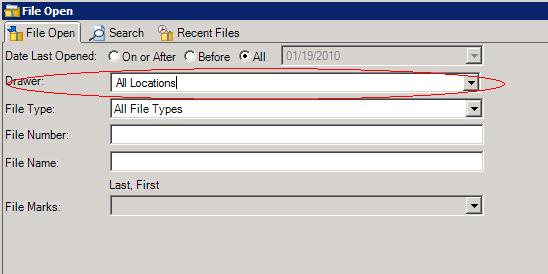
This week starts our official “pilot” roll out of Server 2008 RemoteApp. This is our planned replacement of Citrix for remote access to several of our regularly used applications. We are only using the Server 2008 (not R2) on the application server because our imaging application, ImageRight (version 4.3), does not support 64-bit. If you are planning on doing something similar, there is a minor display bug when access ImageRight v4 through the Remote Web Applications interface and it’s likely related to how the drop down menus are rendered using ActiveX. The problem is not repeated when one logs onto the server directly.


In the “File Open” menu, there are drop-down menus for choosing the drawer
and file type of the file you are looking for. In this example, the drawer selection defaults to “All Locations,” but depending on your personal settings, it may default to a particular drawer that is used most often.

When a user attempts to drop-down the drawer menu to select another option, the menu appears to snap closed quickly and does not allow a selection, making it impossible to switch drawers. (The File Type selection menu works fine.)

This display bug is not scheduled to be fixed in ImageRight version 4 of the software and it’s not a problem in version 5.0 according to ImageRight support. Meanwhile, the work-around is simple. Right next to the “File Open” tab, is a “Search” tab. The Search tab allows for more specific options to selected – down to page types and document descriptions. However, it all does the same basic features as the “File Open” tab.

In my office this isn’t a commonly used tab, we have another search tool that searches across other records databases at the same time, so I have to make sure to point out the issue to new users and provide the work-around information up front. While I’d like our remote access to ImageRight to be a seamless as working in the office, this display issue isn’t a showstopper.

Upcoming TechNet Event – Happening Near You!

The TechNet Events team is hitting the road again, bringing you presentations on Windows Azure, Hyper-V and demonstrations on simplifying Windows 7 deployments.

TechNet Events are free and with over 35 dates in cities across the United States, there’s bound to be one near you. The San Francisco session will be held on March 2nd. Registration is open now.

Certification Discounts

There are a few Microsoft and Prometric exam discount programs going on right now. If you have plans for working on a certification in the upcoming months, these deals might help you along.

  • Microsoft Second Shot – good for exams taken by June 30, 2010. You have to take the first attempt of the exam (and the 2nd attempt if needed) by the deadline.
  • Prometric 15% Off – schedule your exam by the end of February and take it by April 30, 2010.

These offers can’t be combined, but if you’ve got a few exams in the pipeline you might be able to take advantage of both.

Two Links from my last 24 Hours

It’s been a busy last few days, but I don’t want to forget a couple of links that have been useful recently.

The first comes from @nelz9999, who shared a link about managing geeks in the corporate environment. The second was happened upon by a co-worker as we were troubleshooting a BlackBerry trackball that wasn’t working properly. This is how you get those little things clean, but be careful when dealing with those tiny magnetic rollers.