Learn Something Today from TechEd Houston

Since today is Wednesday, I’m bringing you a selection of session from Day 3 of TechEd Houston which was also a Wednesday.

  • Introduction to Microsoft Azure Automation (DCIM-B347)
  • Data Protection in Microsoft Azure (DCIM-B387)
  • How to Rapidly Design and Deploy an Active Directory Federation Services Farm: The Do’s and Don’ts (PCIT-B324)
  • Leveraging Your On-Premises Directory Infrastructure to Manage Your Microsoft Azure Active Directory Identities (DCIM-B301)
  • Mark Russinovich and Mark Minasi on Cloud Computing (DCIM-B386)
  • Deploying and Managing Work Folders (PCIT-B322)
  • Windows To Go: Deployment, Support for BYOD, and What IT Pros Need to Know (WIN-B342)
  • The Agile End-to-End Story for Developers and IT Professionals (DCIM-B358)
  • TWC: How You Can Hack-Proof Your Clients and Servers in a Day (DCIM-B372)

As you can see, Wednesday was a busy day at TechEd and I since I was working down in the Windows Client area on the expo floor I still have a lot of these to watch!

More From TechEd – Tuesday Sessions

It’s Tuesday, so a perfect time to flashback to some sessions that looked interesting to me from Day 2 of  TechEd 2014. These are all available on Channel 9.

  • Effortless Migration from VMware to Windows Server 2012 R2 Hyper-V (DCIM-B412)
  • Best Practices for Integrating On-Premise Datacenters with Microsoft Azure IaaS (DCIM-B330)
  • Security and Microsoft Azure IaaS (DCIM-B385)
  • TWC: Data Privacy and Protection in the Cloud (OFC-B233)
  • Group Policy: Notes from the Field – Tips, Tricks and Troubleshooting (WIN-B328)
  • TWC: Social Engineering: Manipulations, Targeted Attacks, and IT Security (PCIT-B319)

Go forth and learn something today!

TechEd!!!

Today starts off Day 2 of TechEd!  Yesterday, I spent a lot of time working in the Microsoft Solutions area (MSE) talking about Windows and Mobility.  You can find me in the “Device Bar” today and I’ll also be at the “Ask the Experts” event this evening.

So great announcements came out during the keynote yesterday.  I can’t wait to get started with Azure Files and the new site-to-site VPN tunnels between Azure VNets.  Also, being able to deploy Windows 7 and Windows 8.1 clients to Azure for testing and development is a great addition.

While I’m here at TechEd, my fellow colleagues have been busy blogging about what’s been going on as well.  Check out some posts below:

Don’t forget, even if you aren’t here in person you can still stream a lot of great TechEd content from ch9!

Moving to Hybrid Cloud with Microsoft Azure – Online Event!

Get the best of both worlds! With Microsoft Azure and System Center 2012 R2, IT Pros who manage infrastructure can easily extend on-premises networks to embrace the power and scale of the cloud—securely and seamlessly. Solve pressing IT issues with hybrid cloud solutions that you can implement today. In these Jump Start sessions with live Q&A, explore how to manage more data without more hardware, protect data with off-site backups, and prepare for disaster recovery.

In these sessions, field-experienced Technical Evangelists focus on Microsoft Azure storage, virtual machines, and virtual networking. Complete the hands-on labs, and walk away with a fully functional Windows Server 2012 R2 or Linux cloud-based test lab running Microsoft Azure. Be sure to sign up for the free Microsoft Azure trial so you can follow the demos during the sessions. Don’t miss this event!

COURSE OUTLINE:
Day one:

  • Introduction to Microsoft Azure
  • Cloud Storage and Virtual Networks

Day two:

  • Virtual Machines
  • Monitoring Public and Hybrid Clouds
  • Microsoft Azure Active Directory

Register now! (linkto: http://aka.ms/MovetoHybrid)

Moving to Hybrid Cloud with Microsoft Azure
Date: May 21 and May 22, 2014
Time: 9:00am‒11:30am
Where: Online virtual classroom
Cost: Free!

Azure DNS: What Comes First?

Oh, it’s that age old question – what comes first? The chicken or the egg?  With Windows Azure, the question often is about DNS. What comes first?  The IP address of the DNS server or the machine itself?

Honestly, it depends on what you plan on doing with your virtual machines and how you utilize the virtual networks.

Option 1: Spin up a VM as a “Quick Create”
When you do this, you are creating a VM without a custom virtual network that you control. The Azure fabric will assign an external IP address (VIP) and an internal IP address (DIP) isolated from all other machines. An appropriate DNS server from the fabric will be injected and your servername.cloudapp.net DNS name will be registered so your VM can be reachable from the Internet. All is done.

You could create other VMs the same way and the only way they would be reachable from one to the other is over the Internet via ports you opened. They would not share any “internal” networking.

Option 2: Create a Virtual Network and the create VMs attached to your VNET.
When you do this, you are controlling the internal address assignments and purposely joining VMs to that network so they can communicate with each other.  For that they need an “internal” DNS server.
Because the DNS settings are injected into the VM upon boot, you must have the IP address of that DNS server in mind before you begin and assign it within your Virtual Network settings, before creating the VMs themselves.

This DNS server could be from your on-premises network (if you are creating a site-to-site VPN) or one that does not yet exist in your Azure VNET, like an server acting as an Active Directory DC, perhaps.
When you create a virtual network, take note of the first IP address that would be assigned to a machine, or you can now choose to statically assign IP addresses using PowerShell. Add that address as the DNS server in your virtual network.  Then when you create VMs they will know to use the internal DNS you specify as the primary DNS.

An external address (VIP) would still be automatically assigned and the name of the cloud service would be either your server name or something else that fits into the design of what you are trying to accomplish. That DNS name would still be registered with Azure DNS, but your internal IP address would be registered with the DNS server you specified.

Happy networking!

********************
For more “Pieces of Azure” find them here:

Azure IT Camps – Coming to a City Near You!

Do you want to learn more about Windows Azure and System Center 2012 R2?  Now is your chance!

image

Join us at this FREE full-day hands-on event in a city near you to experience the power of Hybrid Cloud. Our field-experienced Technical Evangelists will guide you through the process of jumpstarting your knowledge on Windows Azure Storage, Virtual Machines and Virtual Networking for key IT Pro scenarios. Complete all of the hands-on labs and you’ll walk away with a fully functional Windows Server 2012 R2 or Linux cloud-based test lab running Windows Azure!

Session Requirements
Be sure to bring a modern laptop that is capable of running the following prerequisites. For more detailed system specs, click on the city nearest you.

  • Modern operating system, including Windows 7, Windows 8, Linux or Mac OS X
  • Modern web browser supporting HTML5 and Javascript, including IE 9 or later, Chrome, Firefox and Safari
  • A remote desktop (RDP) client – included with Windows platforms. Mac and Linux RDP clients can be downloaded for free

All participants registering for the event should have an active Windows Azure subscription. If you have not already done so, sign up for a FREE trial of the Windows Azure platform and services, including access to Virtual Machines and Virtual Networks.

clip_image001

Hope to see you there!

A Week of Azure? Sounds Good To Me!

If you’ve been wanting to learn more about Azure, don’t miss out Azure Week at the Microsoft Virtual Academy.  Every day during the week of January 27th through the 31st, a different Azure topic will be covered.

  • Monday: Overview Day – Get Started with Windows Azure Today Jump Start
  • Tuesday: Architecture Day – Designing Applications for Windows Azure Jump Start 
  • Wednesday: Developer Day – Building Windows Azure Applications Jump Start 
  • Thursday: Infrastructure Day – Windows Azure IaaS Deep Dive Jump Start 
  • Friday: Mobile Services Day – Mobile Apps to IoT: Connected Devices with Windows Azure

If you just want a quick primer on some Azure concepts, check out my Pieces of Azure mini-series:

Close, But Not Too Close! Azure Affinity Groups and Availability Sets

Microsoft has several regional datacenters for hosting Azure IaaS. There are two on the west coast, two on the east coast and two each in Europe and Asia. When you create a VM you are required to select a region, at minimum, where your VM will be located.  If you just go with a regional selection, you leave it up to the Azure fabric to control where your machine is placed.

For more granular control, you have two other components you need to take advantage of – Affinity Groups and Availability Sets.

By creating an affinity group, you are giving the Azure fabric some additional logic to keep your VMs physically closer together within the datacenter. This might be important if you are hosting an application or service that has multiple server components and you want them to closer together to reduce any potential latency across the internal network.

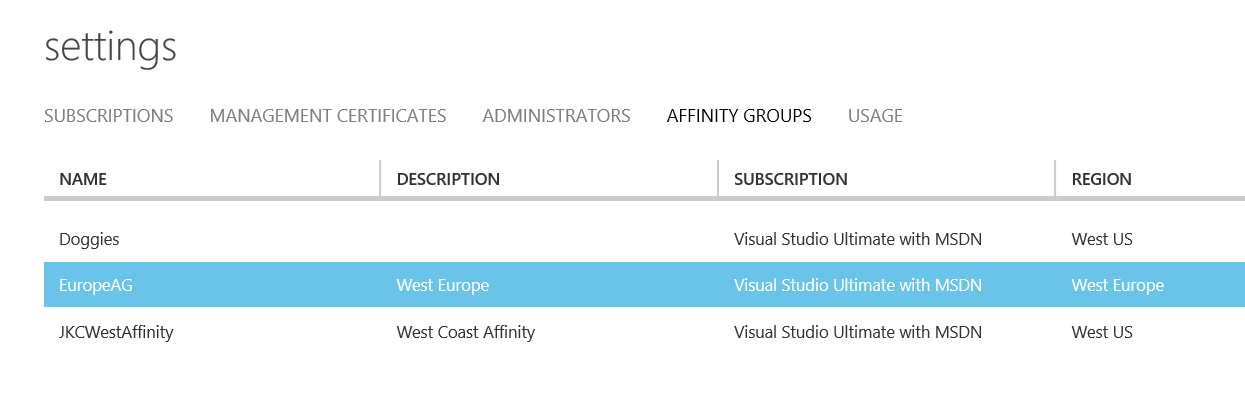
To create an affinity group, you provide a name and create a network that is associated with it.  Then all the VMs added to that affinity group also will be given addressing from the associated virtual network. Affinity groups are created in your Azure settings area.

Having your servers close together in the physical fabric is good, but being TOO close could be bad.  For high availability, you’ll also want to make sure that your servers aren’t all on the same rack or within the same fault domain in the datacenter.  If a whole rack goes down due to a hardware issue, you wouldn’t want an entire cloud service to go with it.

That’s where “Availability Sets” come in.  An “availability set” allows you to define a group of servers that perform the same role and Windows Azure separates them across fault domains and ensures that at least one of them is always available. 

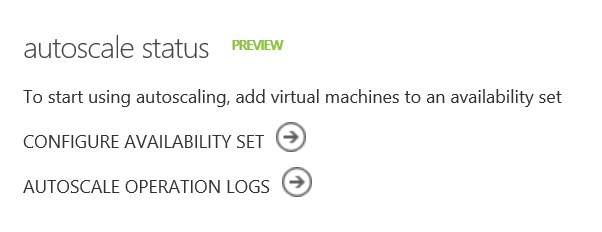
You can set up availability sets in two places: within the autoscale properties for a cloud services (as they are required for autoscale to function), or from the configuration settings of an individual server.

Used with Affinity Groups, you can then get all your servers close together for performance, but separate enough to ensure that your environment can survive fabric maintenance windows or fault events. 

Close, but not too close. Perfect!

Northern California Powershell Users Group in SF!

Tonight, I had the honor of hosting the Northern California Powershell Users Group in San Francisco.  The topic was using Azure with Powershell.

For those of you who were there, a lot of conversation revolved around provisioning and managing Azure and I wanted to mention that Microsoft (via Technet Events) just finished up a round of IT Camps for Azure IaaS.

At those events, attendees build out a dev/test environment in Azure and while most of the lab guide detailed everything out with using the GUI, there was a bonus challenge at the end that included doing everything with Powershell.

If you are looking to start using Azure with Powershell and want a good place to start experimenting, I suggest getting a free Azure Trial and then downloading the lab manual to give it a shot yourself.  You can find a copy of the lab manual at http://aka.ms/SlidesPlus under the “Azure Camp – Fall 2013” folder.

You’ll find the “Challenge Exercise” and instructions on where to find the necessary Powershell, towards the end of the manual.

Enjoy!

Ins and Outs: Azure Input Endpoints

Go ahead, say that three times fast! Yes, it’s a tongue twister and when it comes to virtual machines and cloud services, it can be a bit of mind-bender too.  (If you haven’t had a chance to read my previous posts about Cloud Services for IaaS and Virtual Networks and DHCP, you might want to check those out for background.)

In a nutshell, input endpoints are openings in your cloud service firewall.
image
Because a cloud service has only one external IP address, port forwarding is used to direct various access requirements to the right location.

In this screen shot, you can see that my single cloud service (with a public IP of 137.135.42.10) has four endpoints open, two for the server named “sabina” and two for “franka”.
inputendpoints
In this case, the port numbers were randomly assigned and as this is a Windows Server the default ports are for RDP and PowerShell.

By looking at the specific endpoints assigned to “Franka”, we can se that Remote Desktop is using the public port 58155 and PowerShell is using 58392.
image
Because this Windows Server was spun up using the image from the Azure gallery, I can trust that the Windows Firewall on the OS has the appropriate rules open to allow traffic that is passed through the Azure endpoints to be received by the server.

If I was to add on a different service, like HTTP or FTP, I would need add the endpoint to Azure AND add the appropriate rules to server OS, so it will listen on the proper port. When creating a new endpoint, Azure will suggest the default port numbers, but they can be customized easily.

An important point to remember is that opening the endpoint in Azure won’t guarantee your server will be accessible via that protocol.  You must open the corresponding listener port from within your operating system. This is critical if you are bring your own server image to Azure, as it’s important to make sure that RDP (or your management protocol of choice) is also open on the OS otherwise you will be unable to manage your server once it’s in the cloud.

If you require more fine tuning of your endpoint access with customized ACL lists, that’s not available via the Azure GUI.  However, you can use PowerShell for that level of detail – read more here.

Depending on the work that your servers are doing within your cloud service, you can also configure basic round-robin load balances on those endpoints.  Learn more about that here.

Haven’t tried out Azure yet? Sign up for a free trial today.