Data Aggregation – Don’t Panic, Just Be Aware

I received a warning from a family member via text message a few days ago, as well as saw several posts on Facebook alerting others to a new website that “has all your personal data” – www.spokeo.com.

The advice was to go to their privacy section, enter my email address and request to be removed from the listing. According to what this family member told me about the removal process, you simply provided your email address, but only two listings could be removed with any single email address. My ears perked up a bit. Really? Interesting.

So I checked out the website with a little more of a critical eye. The site is a data aggregator, pulling data from various already public data sources – the white pages, home purchase records and the like, as well as your own public postings on Facebook, MySpace and Twitter.

The site requires payment to get the detailed results, but the teaser items include address and phone number, an estimate of your age, marital status, race, education level, possibly a few photos, lifestyle interests and median home values/income in your neighborhood.

While somewhat creepy, none of this is a big shocker. My name, address and phone number are in the white pages. The median home value and income in my neighborhood are easily searchable on www.zillow.com. As for the more personal goodies, the site indicates that it gets a good portion of its information from public profiles on Facebook and MySpace.

The hype behind all the warnings and knee-jerk reactions to “remove your listing from the site” lead me to look around for other data aggregators and compare. If you are going to remove your name from one, don’t forget several others like:

All has some similar data, though they don’t all hit the social media space as hard as Spokeo does. All have an option to pay for more detailed information and many (especially when searching for people who are known to NOT be using social media) have incorrect data.

Ultimately, data is out there and aggregation sites will take advantage, however you really have to go to the source of the data to change what it available – rushing to knocking your name off one search site isn’t going to keep it from appearing on a new site next week. And personally, I’m not excited about providing my email address for “verification” so that can be collected up for some other unknown reason.

Like I’ve said before, it’s important to control and monitor what you put online. Google yourself. Check out some of the data available on these aggregation sites. Be critical of what you click and what you share. The Internet isn’t the safest place, but most places that are interesting have some level of risk.

Finally, don’t forget it’s also important to check your credit and lock your doors, because it’s not just the folks at www.pleaserobme.com who have the ability to figure out where you aren’t.
Version History in ImageRight 4.0

When our company started out with ImageRight 3.5, adding annotations to documents was one of the big features that made the system easy to adopt. However, much like writing on a document with a pen, annotations couldn’t be undone individually. One had to be very sure they were putting the proper annotation in the right place, because once it was committed to the page there was no turning back.

One of the improved features that came with ImageRight 4.0 is the addition of version history with documents. This feature allows people with the appropriate permissions to view the history of changes made to a page. While regular users can see the history of individual annotations by view the properties of each, the version history allows the quick review of each set of changes and a previous versions can be promoted to be the current version in the case of errors. This has allowed me to help some users “roll back” changes, which has saved them time and made people a little more comfortable with experimenting with different uses of annotations.

For .TIF images it shows the annotation history and for non-image files (like Word docs or spreadsheets) complete copies of the changed files are stored.
This is an improvement over the 3.5 version where annotation history was maintained for the sake of being able to review who added what marks, but didn’t allow for any type of administrative “undo” of annotation that were made in error.

When it comes to .TIF documents, it is possible to create a “new” version of a document without making a visible change. It’s important to have an idea of the scenarios where these extra versions can be created in case you are tasked with doing some type of detective work regarding the history of a document.

Here are several examples of when a new version can be created without any visible annotations.

  • Adding an annotation and then deleting the annotation prior to saving or moving off a page
  • Clicking on a sticky note, without moving or modifying the content
  • Deleting a sticky note
  • Add a text box with no text and deleting it prior to saving or moving off a page

As people get more comfortable moving within ImageRight and using annotations, these actions will happen less and the true history of each document will remain pretty clean. The addition of this feature provides valuable details that are worth the hit in disk space taken to maintain the versions.

Even More Windows Events!

It must be conference season again, because I keep running across a variety of technical events that look valuable. Here are a couple more:
Windows Summit 2010 runs May 25-27 at the Microsoft Conference Center on Microsoft’s campus in Redmond, WA and is designed for people who engineer and test Windows 7 PCs, devices, and software. Three technical tracks (System, Device and Software) will to help you create the best systems, devices, and software using Windows 7 and Internet Explorer. For more information visit the website, registration is $399.
Also, the Launch 2010: Technical Readiness Series kicks off in late April. The event in San Francisco is on May 20th at the Embarcadero Hyatt, but check out the full city listings for other locations. The event will cover Office 2010, SharePoint 2010 and other products including Exchange 2010 and SQL Server. There are both IT Professional and Developer tracks available and this event is free, so register soon – these types of events fill up fast.
Finally, don’t forget the Pacific IT Pros regular monthly meeting tomorrow and the special TechDays Forensics session next week.

When Easy Print Doesn’t Print

Terminal Services 2008 introduced Easy Print, a feature that doesn’t require print drivers for local printers to be installed on the remote terminal server. Instead Server 2008 redirects the default printer from the local machine and utilizes the locally installed driver.

While this works well for a lot of printers, printers that need legacy or specialty drivers (like those handy multi-function printers), may result in print jobs are garbled or use incorrect fonts.

The first troubleshooting step should be to update the the print drivers on the client computer, but if this isn’t possible, the default behavior of Easy Print can be overridden with some registry keys and some GPO settings. Also, in some cases, the correct print driver still produces bad print results so you’ll need to use a different driver.

The following steps will override Easy Print, utilizing a driver installed on the server instead AND force a substitution with a different driver.

First, you’ll want to create a special INF file that lists the printers your want to specify alternate drivers for. You’ll reference this INF file in some new registry entries on the server. Follow the format used in the following example:

;NTPRINTSUBS.INF

;Printer mapping file for client-side to server-side drivers

[Printers]

"OEM Printer Driver Name" = "Windows Server 2008 Driver Name"

For example:

"HP DeskJet 720C Series v10.3" = "HP DeskJet 722C"

The left side of the equation is the exact name of the printer driver associated with the client printer that is being redirected to the server. The right side of the equation is the exact name of the server-side driver that is installed on the terminal server. You’ll have to check your printer driver properties to make sure you have the names right.

Next, you’ll need to add a few registry values to your terminal server.

  1. Locate the HKEY_LOCAL_MACHINE\SYSTEM\CurrentControlSet\Control\Terminal Server\Wds\rdpwd registry subkey.
  2. Add the following values:

    Name: PrinterMappingINFName
    Type: String (REG_SZ)
    Value data: Name of the .inf file to which you want to redirect lookups. (Example – c:\windows\inf\ntprintsubs.inf)

    Name: PrinterMappingINFSection
    Type: String (REG_SZ)
    Value data: Name of the section in the .inf file to which you want to redirect lookups. (Example – Printers)

You must restart the Print Spooler service on the terminal server for the changes to take effect. If you need more details about this process, check out Event 1111 – Terminal Services Printer Redirection on TechNet.

Finally, you’ll need to adjust or create a group policy that will alter the behavior of Easy Print for all of your TS users. There are several additional policies that can be enabled to tweak how client machines handle Easy Print. The one you want to adjust “Use Terminal Services Easy Print Print Driver First” and you’ll want to disable it. This will force clients to look for appropriate drivers on the server first and only use Easy Print if no suitable driver is found. It doesn’t disable Easy Print entirely, just makes it the second choice.

Depending on which OS you are using as your GPO management workstation, you’ll have to look in for the policy in one of two places. The discrepancy is related to the renaming of “Terminal Services” to “Remote Desktop Services” with Windows 2008 R2. The registry settings that the policy adjusts are the same.

  • For Vista or Server 2008, go to Computer Configuration –> Policies –> Administrative Templates -> Windows Components –> Terminal Services –> Terminal Server –> Printer Redirection.
  • On Windows 7 or Server 2008 R2, go to Computer Configuration –> Policies –> Administrative Templates –> Windows Components -> Remote Desktop Services -> Remote Desktop Session Host ->Printer Redirection.

In our case, we were unable to find the setting at all using Windows Vista and we don’t have a Windows 2008 server running GPMC to compare it too. However, we simply made the adjustment using a Windows 7 workstation instead. For other troubleshooting tips with Easy Print, check out the RDS Team Blog.

On the Tech Radar: Upcoming Events

Looking for some technology events for your calendar in the upcoming months? Here are a few that you might want to check out.
Start out April with the regular Pacific IT Professionals meeting on April 6th. Hear from Neustar about their Webmetrics and UltraDNS solutions. Also, PacITPros will also be having a special TechDays event on Computer Forensics on April 12th. Sign up soon to secure your spot!
A one day Windows Intelligence event is being held in Burlingame on April 26th, hosted by QuickStart Intelligence and Microsoft. Technical tracks include Windows 7, Server 2008 R2 and Virtualization, Exchange and Office.
On June 10th, the Microsoft and Citrix will team up and come to San Francisco to talk about desktop virtualization. Other cities and dates are on the schedule from now through June as part of the 2010 Virtualization Summit.
Finally, don’t forget some of the multi-day events, which are always a lot of fun – the Microsoft Management Summit in Las Vegas (April 19-23) and TechEd in New Orleans in June.

Inside MDOP: MED-V and App-V

Inside the Microsoft Desktop Optimization Pack, you’ll find MED-V and App-V. Both provide ways to deliver applications to your desktop, but they solve different problems.

MED-V is good for resolving incompatibilities between an application and Windows 7. By creating and distributing a full instance of Windows XP from which the application runs, users can access applications that would not run on Windows 7 otherwise. It’s also applicable for websites that must run in a browser like Internet Explorer 6. For example, an IE 6 instance can be launched from within the MED-V managed OS and be controlled with policies to limit the sites that are available from the less secure browser.

In general, a MED-V hosted application is isolated from the primary operating system, though the clipboard can be shared to allow for basic copy/paste functionality between applications and printer redirection can ensure users can print from the MED-V application. If your application is very task specific and does not require direct interactions with other applications on the primary operating system, MED-V can allow you to upgrade to Windows 7 before solving the application compatibility issue.

Application Virtualization (App-V) creates and delivers a single application in a package, instead of a full instance of an operating system like MED-V. The application package is cached on the local machine, but in not installed in the traditional sense. By not installing application files directly and keeping them isolated in their packages, App-V can eliminate conflicts between two applications that might otherwise cause failures when installed on the same machine. An example would be where Office 97 and later versions of Office share DLLs with similar names, but have functionality that doesn’t work with both products.

App-V also eases application upgrades and maintenance by allowing IT to update single packages that are then streamed to users on demand, instead of having to managing multiple local installations of software. Because applications deployed with App-V execute locally on the desktop they utilize the CPU and memory resources of the local machine instead of those on the server. Inter-application communication with other App-V applications and applications installed locally are preserved, allowing for cut and paste, OLE, and all other standard operations. However applications that install their own device driver, like a print driver, may not be suitable for complete virtualization.

In a nutshell, App-V can help you develop a more robust and controlled application management lifecycle, while allowing support for some legacy applications that don’t play well with new versions. MED-V builds a “temporary” bridge between applications that only work on older operating systems, providing some wiggle room so you can potentially upgrade your desktops without having to wait until all your applications are supported.

Depending on the needs of your organization, MED-V or App-V might be just what you need to solve a lingering application compatibility issue.

To Map or Not To Map – There is a Checkbox!

At my office we’ve begun making several changes to how we manage the desktops and applications for our users and we are taking advantage of Group Policy preferences. We aren’t ready to deploy Windows 7 quite yet, but Windows XP machines can take advantage of Group Policy preferences with the addition of the client side extensions.


The preference we opted to start with was mapping drive letters, which was done with several log on scripts in the past. Everything seemed to be working just fine until a user who accessed the system remotely through our Terminal Services RemoteApp reported that one of the drive letters was missing. Turns out that particular drive mapping was misbehaving for several people on various computers.

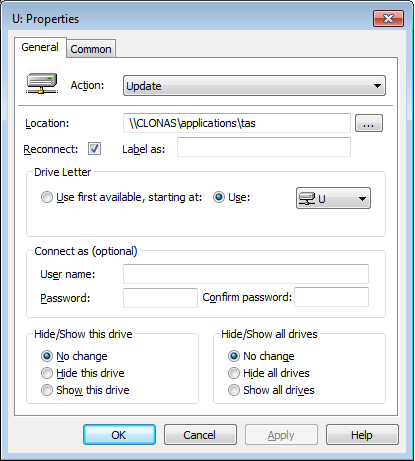
I compared the troublesome mapping to one that was working correctly and found the only difference was a single check box for “Reconnect”.

The “update” action setting is supposed to create the mapping if it doesn’t exist, however that doesn’t seem to be working quite a expected. The reconnect check box saves the mapping in the user’s settings and attempts to restore it at each subsequent log on. I didn’t experiment further, but perhaps if I used the “replace” action setting for the mapping I wouldn’t have the issue at all, as that deletes and recreates the mapping every time.

Either way, the reconnect check box saved the day.

24G2EENJ95VJ

Red Arrows on connected Terminal Services Users

Now that I’ve been actively working to move people from our aging Citrix setup to Server 2008 Terminal Services, I’ve been spending some more time in Terminal Services Manager. While there, I’ve noticed that outside of my adminstrator level account, all the connected users have an icon with a red down arrow next to them.

My first thought was that it was a licensing issue, so I checked the terminal services licensing server. We license by device and everything seemed to be in order. My next stop was a search on the internet, where I turned up this lone post on eggheadcafe.com. The reply about it being a “known issue” is not terribly outdated so I’m just going to let the red arrows be for a while and move on to other things.

Microsoft Resources on the Web

There’s more to Microsoft than www.microsoft.com. Most IT Professionals know about Microsoft TechNet, but there are many other great resources for professionals, consumers, students and businesses that provide access to great content about Microsoft products. Here are a few you might want to visit:

Talking About Windows – check out videos by IT Professionals and Microsoft Engineers as they talk about using and developing Windows. Submit your comments and feedback, or look for Windows related events in your location.

Microsoft Springboard Series – part of Microsoft TechNet, the Springboard Series focuses on the client OS. Find resources, blogs and forums for Windows 7, Windows Vista and Windows XP or connect with industry experts.

Microsoft Answers – real people from Microsoft and the tech community cover this forum for products like Microsoft Office, Security Essentials, Windows Live and the various client operating systems.

Microsoft Learning – the starting point for certifications, training materials and community resources for learning about Microsoft products and prepping for exams.

Because It’s Everybody’s Business – a portal site for businesses highlighting popular IT projects and the related software. Resources include production information, trial downloads and resources including case studies, news and blogs.

DreamSpark – a site dedicated to putting professional tools in the hands of students at low or no cost. Schools and students can register and start downloading Windows Server, SQL 2005 and a host of other development applications.

Working with Windows products, like any other software product that changes and evolves, can lead to frustration and confusion when trying to determine the right product for a project or business need. Knowing where to go to find answers and other valuable resources can be a key to success. It’s not always about what you know, it’s knowing where to look for what you need.

Control Outlook 2007 Junk Mail Settings via GPO

If you do a web search for setting up a Group Policy for controlling Outlook 2007 junk mail settings (specifically adding a global Safe Senders or Safe Recipients list) you’ll find a ton of links, spanning several years and pointing to posts, KB articles and other blogs. This is how I got it to work for me. And yes, you still need on extra registry key that’s not in the template settings.

Goal: Append a global list of “Safe Senders” to each users existing list in Outlook 2007.

Scenario: We have an Windows 2003 domain, Exchange 2003 and Outlook 2007 deployed on Windows XP.

  1. Create a file called “safesenders.txt” in a shared location that is accessible to all users.
  2. Access Group Policy Management Editor from a Vista or Windows 7 machine so Group Policy Preferences can be used.
  3. Install the administration templates for Office 2007. (These were already in our system from when a co-worker deployed Office 2007.)
  4. Create or edit a policy to control Microsoft Office or Outlook.
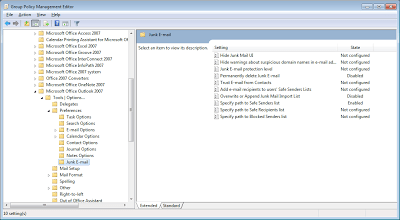
  5. Go to “User Configuration – Policies – Administrative Templates – Classic Administrative Templates – Microsoft Office Outlook 2007 – Tools Options… – Preferences – Junk E-mail”
  6. Disable “Overwrite or Append Junk Mail Import List”. If you enable this policy, the users existing personal list will be overwritten with the common list. (You’d think there would be something that let’s you select overwrite or append, but instead enable = overwrite, disable = append.)
  7. Enable “Specify path to Safe Senders list” and include the path to your common file.

  8. In the same GPO, go to “User Configuration – Preferences – Windows Settings – Registry”. (You don’t have to use the same GPO, but I did to keep things all together. Also, GPO processing happens faster if you have less of them overall.)
  9. Create a key under “HKEY_CURRENT_USER” for “Software\Policies\Microsoft\Office\12.0\Outlook\Options\Mail” with the value of “JunkMailImportLists”, dword=1

Once the policy is pushed out to your clients, you should see your additions to the safe senders in Outlook.